How to Save Teacher Content and Data Before Edmodo Shutters and Deletes Everything on Sept. 23
- By Kristal Kuykendall
- 08/25/22
In a little more than three weeks, Edmodo — one of the oldest and most widely used online learning platforms, launched in 2008 — will permanently shutter, and educators who have used the platform will no longer have access to their accounts, their instructional content, nor their student data, the company announced this week on its website.
The last day that teachers will be able to log in to the Edmodo web and mobile applications will be Sept. 22, 2022. After that, all data from its 100 million users worldwide will be permanently deleted, the company said.
“It is with heavy hearts that we announce the sunsetting of the Edmodo.com platform and service effective close of business September 22, 2022,” the announcement said. “Not only will your account be deleted but all personal data and any materials you have created within your account will also be permanently deleted. You can be assured that your personal data will not be shared, transferred, or sold to any third party and, in fact, once permanently deleted, it will not be accessible or recoverable even by Edmodo.”
How to Save Your Edmodo Data Before It Is Deleted
Edmodo’s instructions for educators to download their data are as follows:
Premium (Pro) Subscription Users:
- Edmodo Pro users are instructed to have their school’s Edmodo Pro School Admin contact their Edmodo account manager as soon as possible for assistance retrieving bulk data.
- Former Pro users who are unable to contact their former account manager and/or unable to log in can submit a help request or email [email protected].
Free Subscription Users (Teachers and Students):
Current and former Edmodo users not on the paid subscription must manually export files and any other data on their account to a personal device before the close of business on Sept. 22.
To download content from the Edmodo Library/Backpack:
- Log into your Edmodo account on the web version of Edmodo.
- Select all downloadable files > Click Download in the Library/Backpack toolbar
- You can mass-select items by clicking on the checkbox next to “Name” in the Library toolbar, as illustrated below.
Note: If the Download button is not available/not responding after you have selected your items, that means some of the selected items are not downloadable; non-downloadable items must be deselected before proceeding.
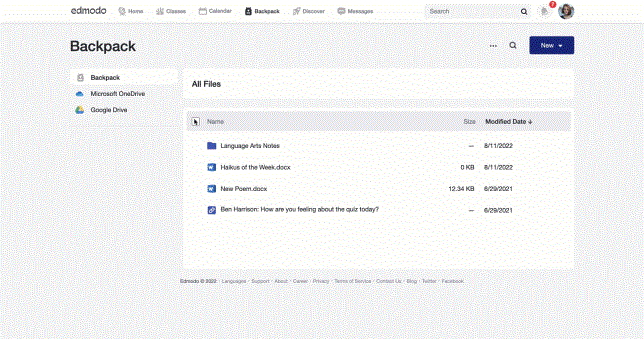
Items that are not downloadable include:
- Edmodo-specific files such as Assignments and Quizzes are not downloadable.
- Folders as a whole cannot be downloaded. Open each folder and select all individual files in order to download them.
- PDF files cannot be mass-downloaded; each PDF file must be opened first, and then select the Download option in the top toolbar.
- Content such as posts within Class/Group pages, Grades, Messages cannot be downloaded. It is recommended to take screenshots of this content if it needs to be preserved.
How to Save your Progress data (Grades):
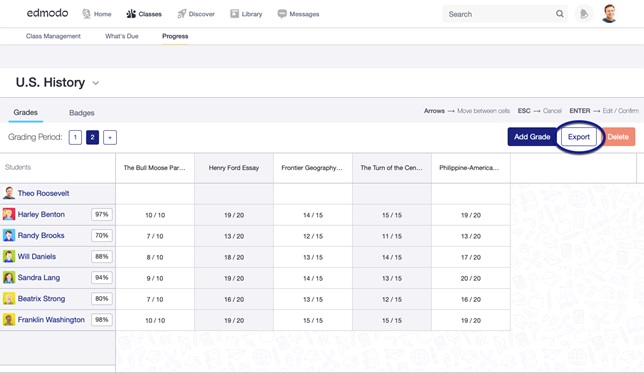
Progress pages (the Gradebook) can be exported to your device as a CSV file, which can then be opened by many spreadsheet applications such as Microsoft Excel, Apple’s Numbers, or Google Sheets.
- Navigate to your Progress (Gradebook).
- Click the Export button in the top right-hand corner.
To print a hard copy or save a PDF version of a Quiz from your Library:
 Navigate to Library > My Quizzes.
In the menu to the right of the Quiz you want to print, select More > Edit.
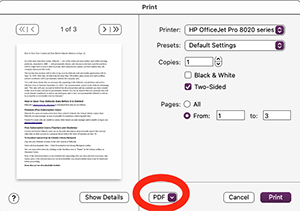
In the top toolbar, select More > Print, and a blank preview of your quiz will be opened in a new tab. Then you can print to a printer or change the printer/destination to Save as PDF. On Mac, the “Save as PDF” option is on the bottom left of the Print details screen (pictured at right).
To print a hard copy or save a PDF version of Quiz Submissions:
Click on a quiz from your class stream.
Click on the printer button on the quiz overview page.
A PDF preview of your quiz submissions will be opened in a new tab; from there you can print as normal, download the PDF, or use the print dialog box to “print” to a PDF file.
Information for Parent Account Users
Parent accounts were built for observational purposes so they will not be able to download any content directly, according to Edmodo’s FAQ page. Edmodo recommends taking screenshots of items parents wish to keep but cannot download (e.g. Messages, Posts, etc.).
Edmodo recommends that teachers and parents also ensure that connected student accounts have downloaded all necessary files and information from their own accounts.