How to Create Keyboard Shortcuts for Special Characters in Windows 10
Your Windows mobile device doesn't have a numeric keypad, so how do you type characters like em dashes or bullets without having to open Word or Character Map?
I'd been using Macs exclusively since 1987 before switching to Windows about a month ago. I was a little bit surprised to find that in all these intervening years, there was still no quick and simple way to type special characters like em dashes, en dashes, bullets and degree symbols by default. This was especially concerning for me, since I'm using a Surface Pro 4, which lacks a numeric keypad.
After a little research, I discovered pretty much every Windows user had apparently resigned themselves to using awkward key combinations or copying/pasting from Word or Character Map — or just avoiding em dashes altogether.
But there is a simple, universal and permanent solution to this problem using a free and open source tool called AutoHotKey.
Using AutoHotKey, you can map any key combination to any character — or even sequence of characters. For example, I've set Alt-hyphen to produce an en dash and Shift-Alt-hyphen to produce an em dash (the equivalent of Option-hyphen and Shift-Option-hyphen on the Mac). It works in any application (including text boxes inside browser windows). And it works with Windows 10.
Here's how to do it.
1. Download and launch AutoHotKey from autohotkey.com.
2. After you've launched it, go to your Desktop (Win-D); right-click on the desktop; and choose New > AutoHotKey Script.
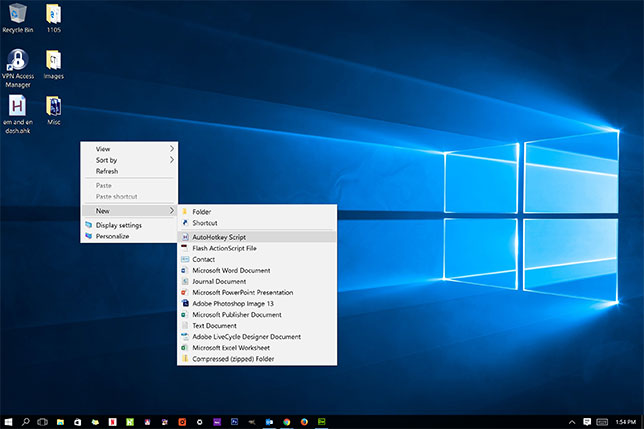
3. Give it any name with a .ahk extension. (Mine, for example, is "em and en dash.ahk.")
4. Right-click the new script, and choose Edit Script from the contextual menu.
5. The script will open up in Notepad, and you'll see some default text at the top. Beneath that, enter the following to create my keyboard shortcuts for em and en dashes.
!-::–
return
+!-::—
return
(The "!" is the Alt key, and the "+" is the Shift key. So "+!-" means Shift-Alt-hyphen. A double-colon separates the keystrokes from the special character you want to map to those keystrokes.)
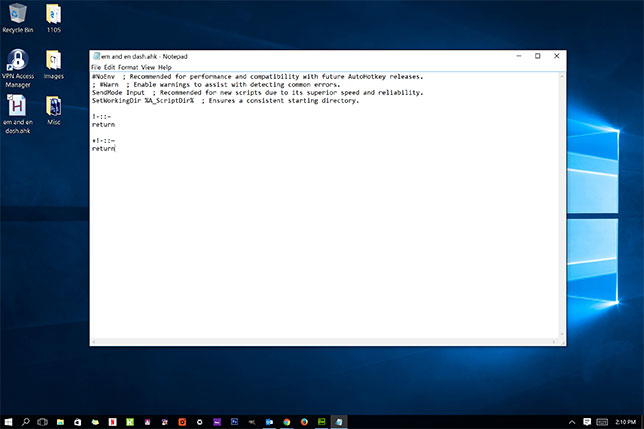
6. Save your script.
7. Now double-click the script to run it for the first time.
8. Once it's running, go into any application and try it out. It will work without a hitch.
After this, you will want to add the script to your start-up items so that you don't have to launch it manually every time you turn on your computer. This is pretty simple.
1. Right-click your script, and choose Create Shortcut from the contextual menu.
2. Type Win-R.
3. In the dialog, type "shell:startup" to open your Startup items folder.
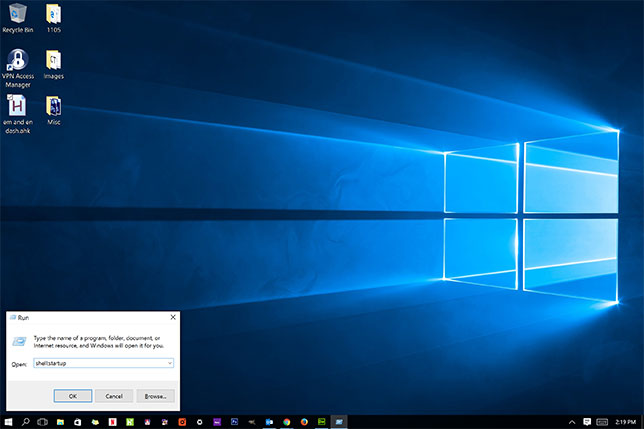
4. Drag the shortcut for your script to the Startup folder.
That's all there it to it. You can now easily add any other keyboard shortcuts to your script as well.
For example, to get a bullet using Alt-8 (equivalent to Mac Option-8) and a degree symbol using Shift-Alt-8, add the following to your script:
!8::•
return
+!8::°
return
You can also map entire words or phrases to any keystroke combination, and you can also use your script to add macros for launching applications. See AutoHotKey's documentation for more details.